Your Discord profile is one of the first things people see when someone wants to learn more about you. We bet even *you* have immediately clicked on someone’s profile when they join a server or Group DM for the first time. It’s just become an internet instinct at this point!
Make that first impression count by setting up your profile to represent yourself how YOU want to be seen. Read on to learn how to edit and customize your profile to have it rep you the right way.
Where do I edit my profile on Discord?
Look in the mirror! Is your hair good? Toothpaste stuck somewhere? Did your nametag fall off? Make sure you’re making a good impression by keeping your profile lookin’ its best!
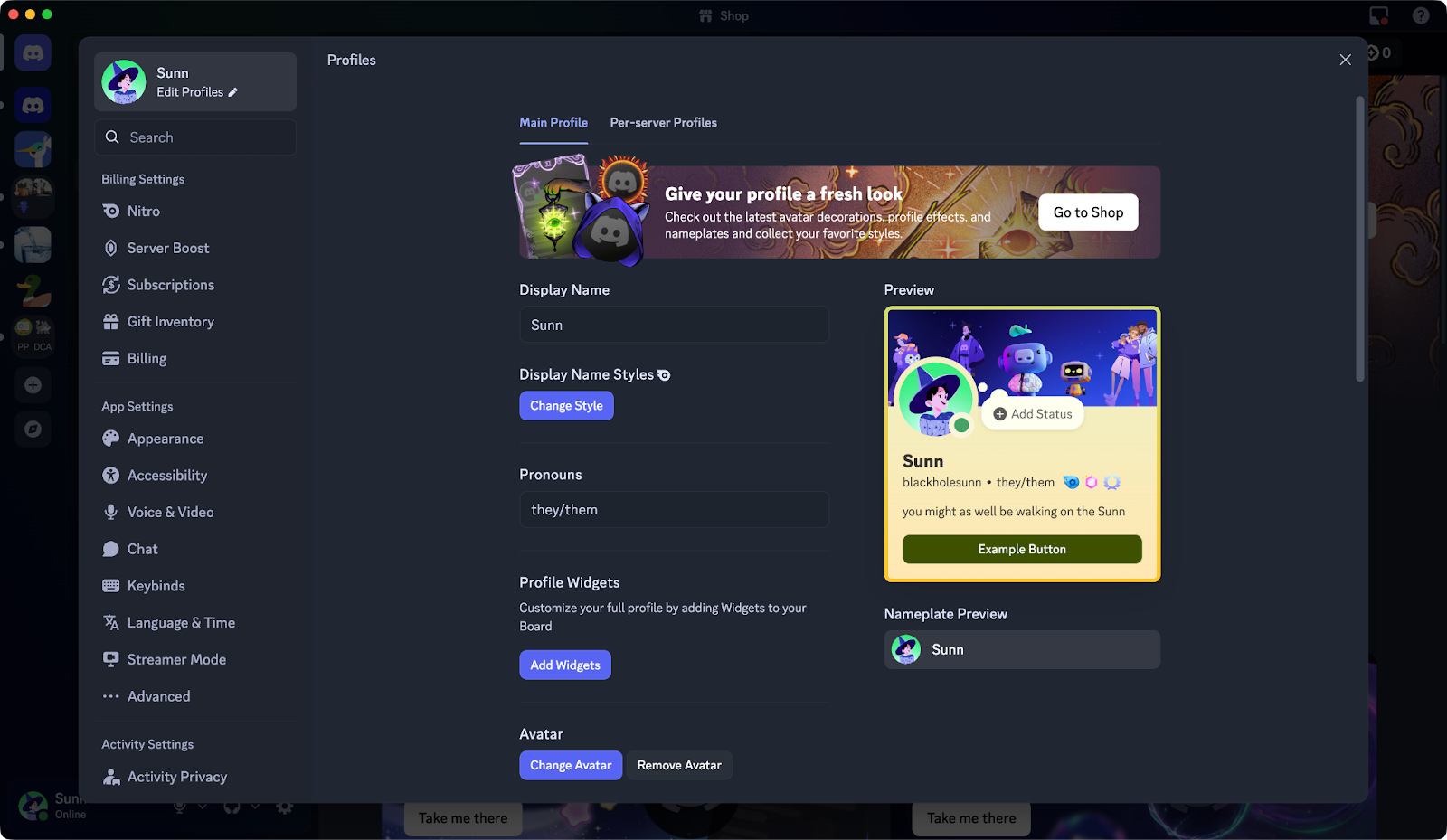
At any point, you can head into User Settings by using the ⛭ Gear icon on the bottom left of the desktop app, then opening “Edit Profiles.” On mobile, tap the “You” button on the bottom right of the app and press the big “Edit Profile” button!
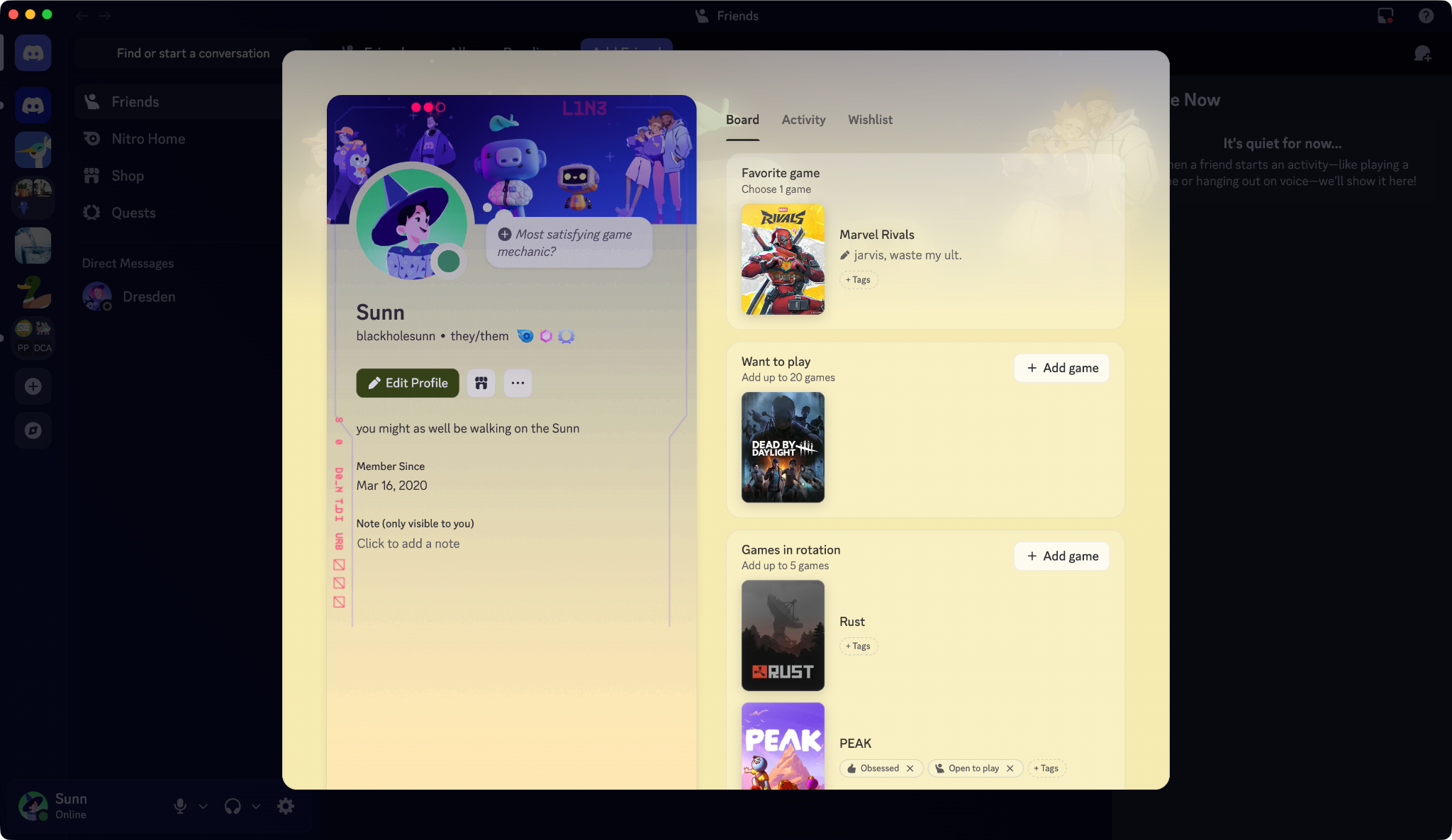
You’ll be brought to this particular page that shows you everything you can edit on your profile:
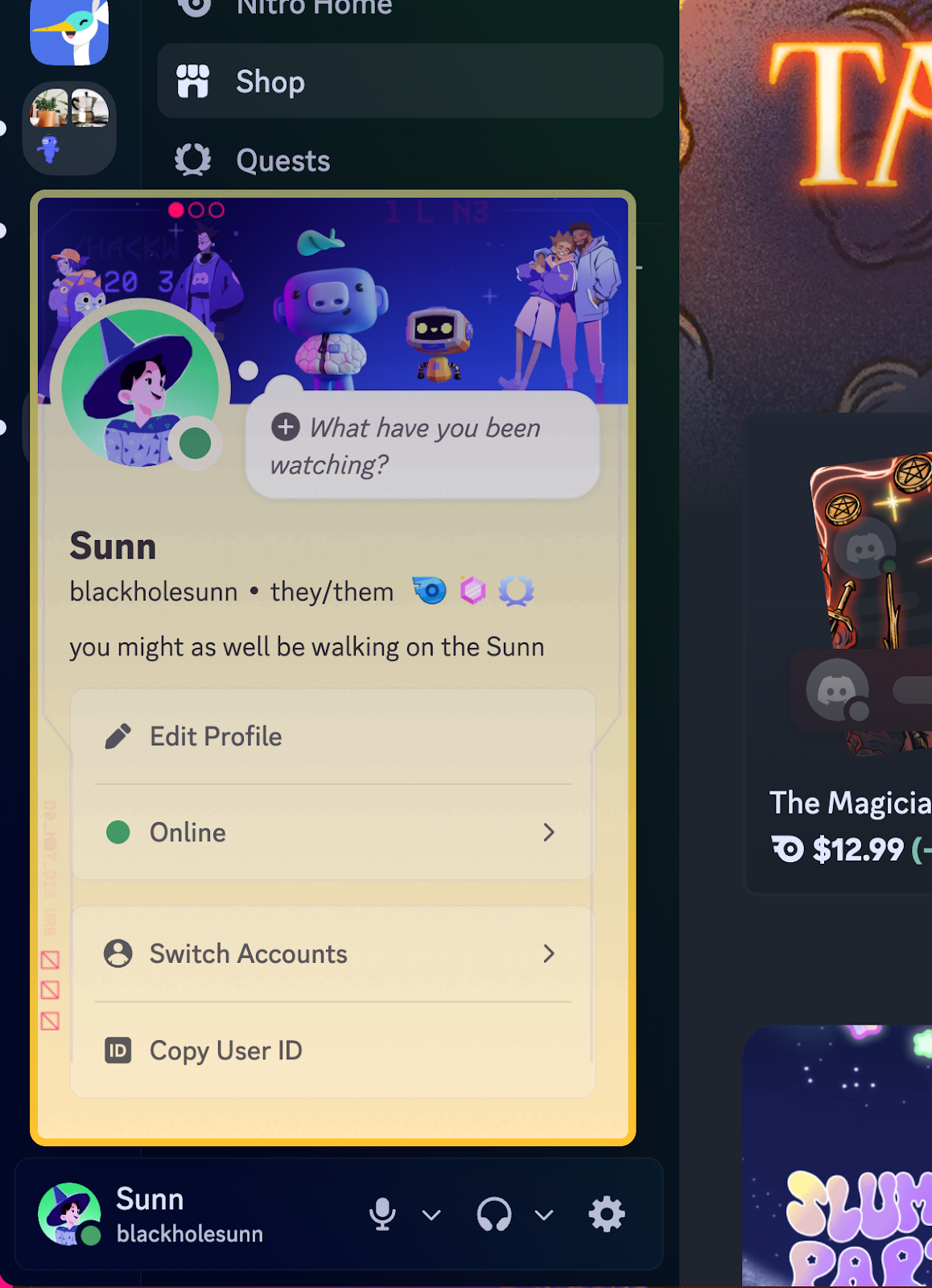
You can also quickly see how your profile looks to everyone by clicking on your icon at the bottom left of the desktop app or the bottom right of the mobile app. The preview will be what you look like to your friends.
And how do you think you’ll get that set up, huh? Got a profile idea you’re itching to test out? Let’s keep goin’ and see how to get things juuust right:
How to Upload an Avatar on Discord
What do you look like? No… what do you feel like? What represents you the most... is it an object? A character from your favorite anime, or a favorite animal? Or just you?
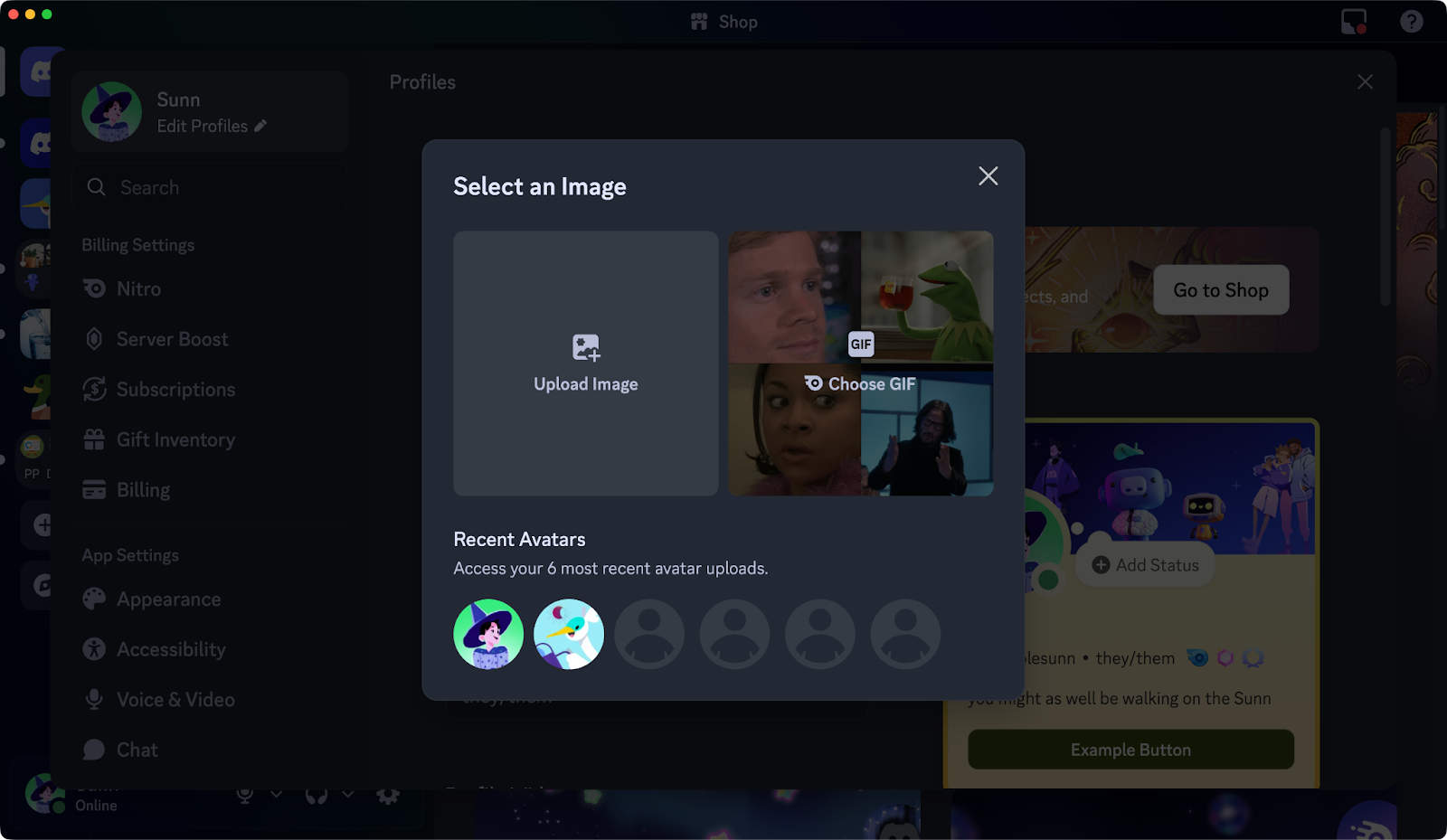
An avatar is a deceptively powerful part of your digital appearance, so take some time to pick an icon that truly speaks to you! To upload an Avatar, head to either User Settings > Edit Profiles on desktop or You Tab > Edit Profile on mobile, where you’ll see a “Change Avatar” button.
Press that, then you can upload a picture from your device that represents you.
If you have Nitro, you can even upload an animated avatar! Make your icon wave! Or laugh. Or glare… menacingly.
Pro Technical Tip™️: Uploading many avatars too fast when trying to set the perfect crop for your PFP will force you to wait before you can upload one again. BUT, hitting “Cancel” before confirming your changes won’t upload the final image, and therefore, not throttle you for testing avatars too quickly.
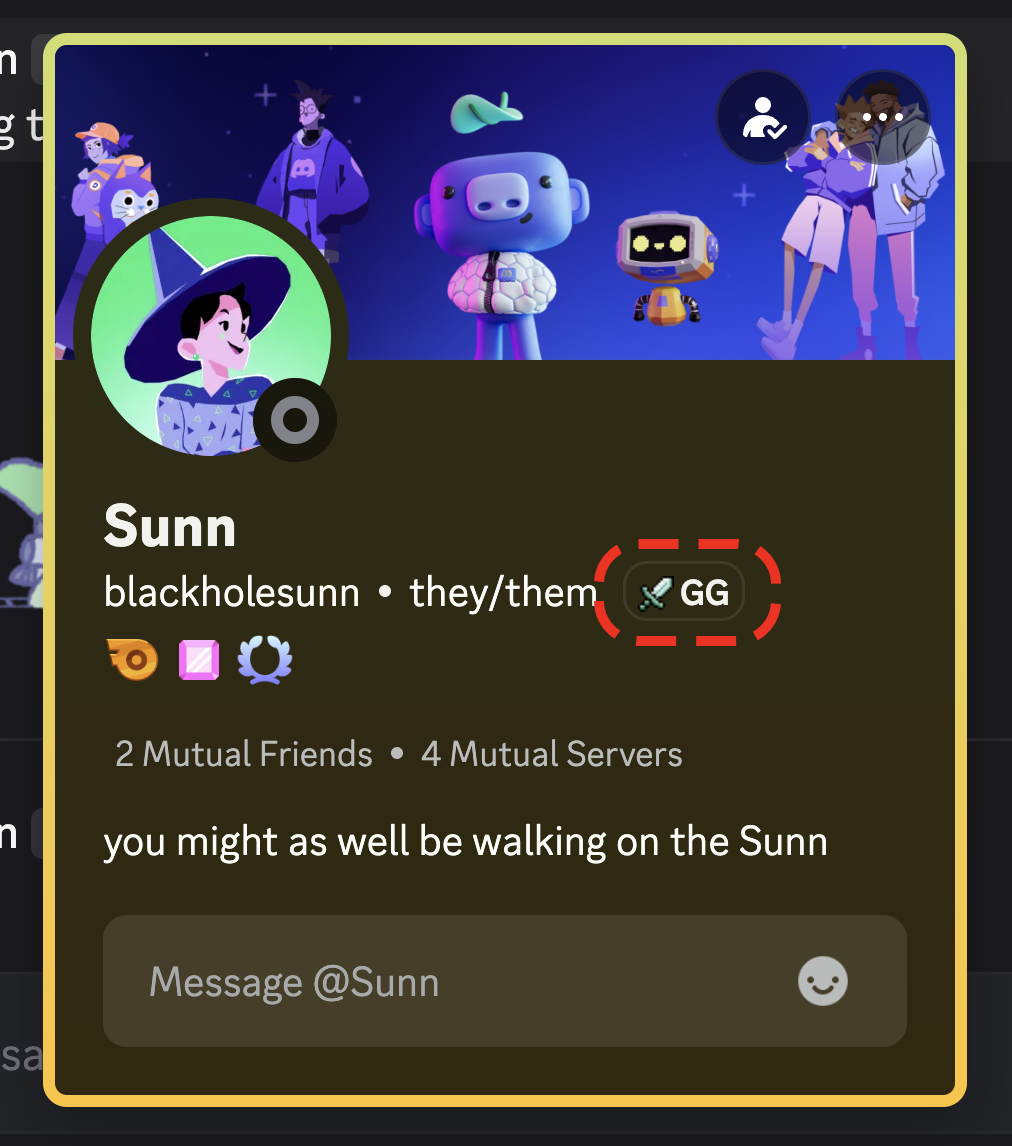
Is there a particular server or community that you spend the MOST time on that’s open to new members? Show it off with a Server Tag! Server Tags hang out next to your display name wherever you post, and directly on your profile.
If someone clicks or taps on your Server Tag, they’ll be able to see what the server you’re repping is all about.
A server will have a Server Tag available if it’s sufficiently Server Boosted, and the server admins use their boosts to unlock Server Tags. If you wanna show off a particular server but you don’t see it as an option for a Server Tag, share this support article with the server’s admins!
Share What Games You’ve Been Into Lately
You know what people do on Discord? Play video games. If you’re on this blog, you probably play them too! You can show off your favorite games, the games in your backlog you’ve been chugging along at, and that one extremely niche visual novel you desperately want all your friends to experience with Profile Widgets.
Some of the profile widgets that are available for you to show off your gaming habits on your Discord profile include:
Favorite Game
Games in Rotation
Games I Like
Want to Play
At the time of writing, Profile Widgets can be added and are viewable on desktop.
How to Show What You’re Doing In Your Discord Status
What’re ya doin?! How are you feeling? Tell the world!
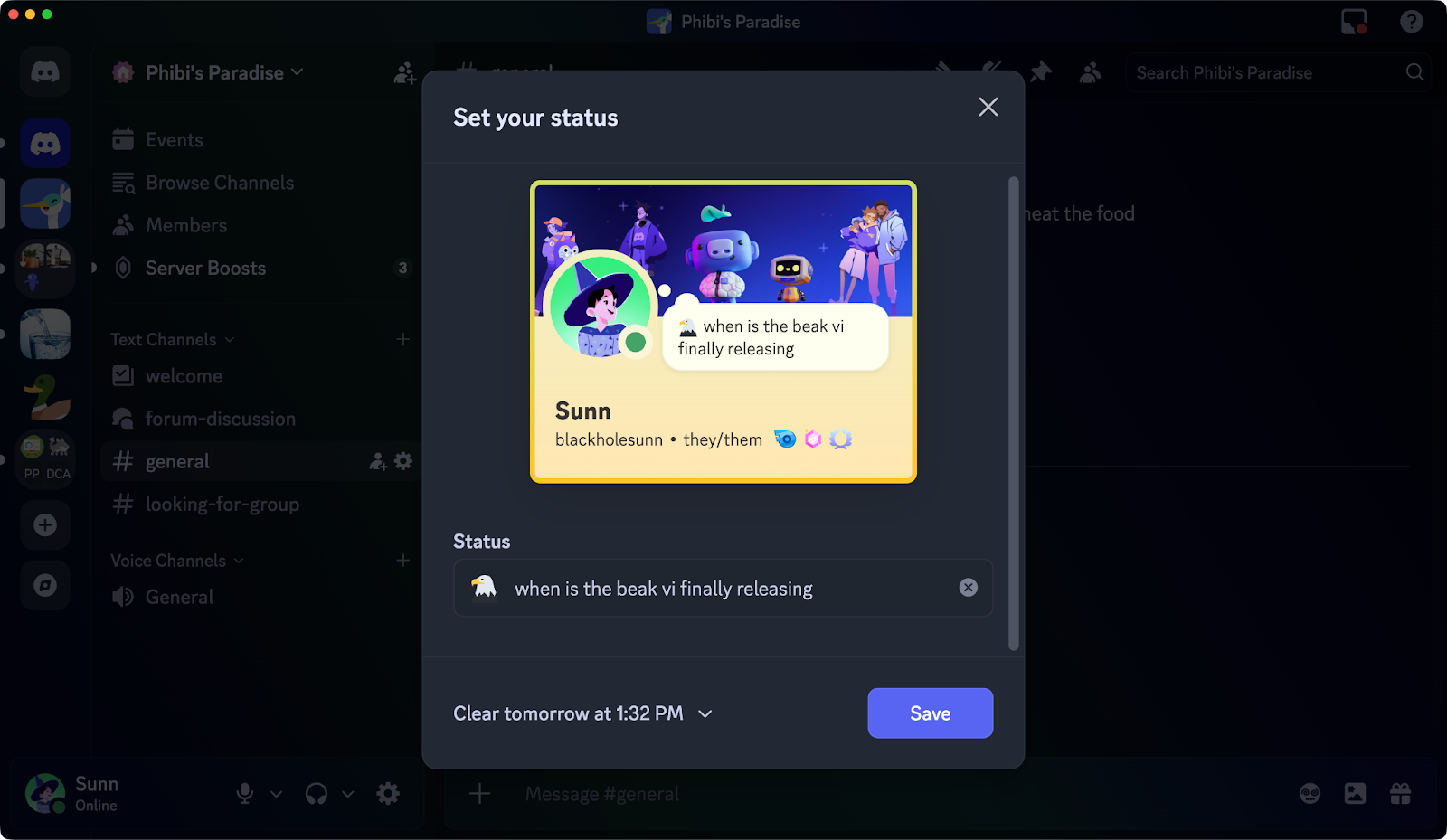
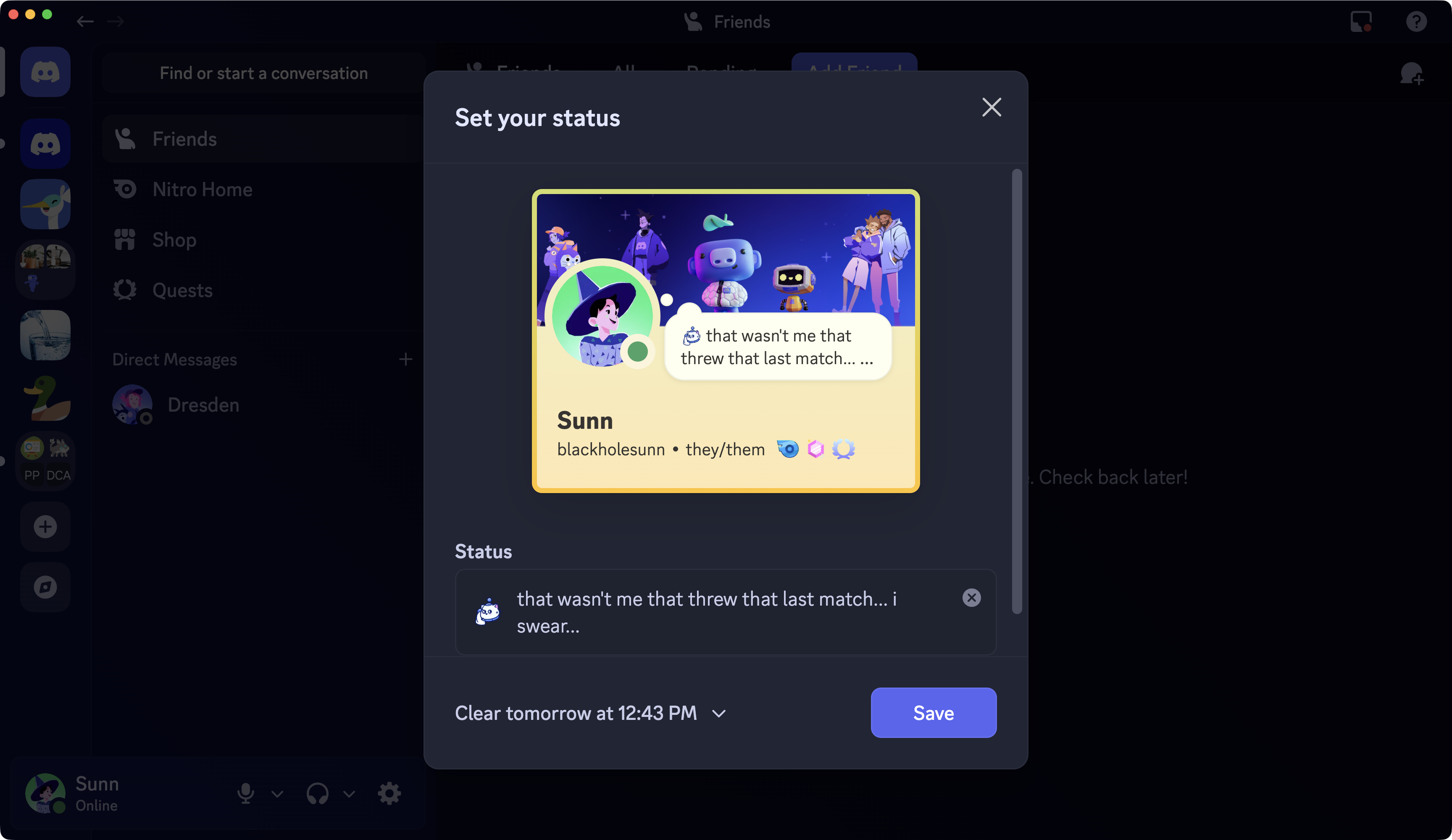
You can share a short message with whatever’s on your mind by tapping on your profile icon on the desktop or mobile app. From there, you’ll see a thought bubble popping out of your avatar. Selecting that will let you add a short message for whatever’s on your mind.
You can also decide how long your status message stays up or keep it f o r e v e r. Or, ya’know, until you’ve decided it’s time to mix things up.
Linking certain accounts to your Discord profile lets you automatically share what you’re doing on Discord, such as what games you’re playing, music you’re listening to, and even what anime you’re watching! Check out a few of the possibilities below:
Add Extra Profile POP to your Discord Profile with the Shop
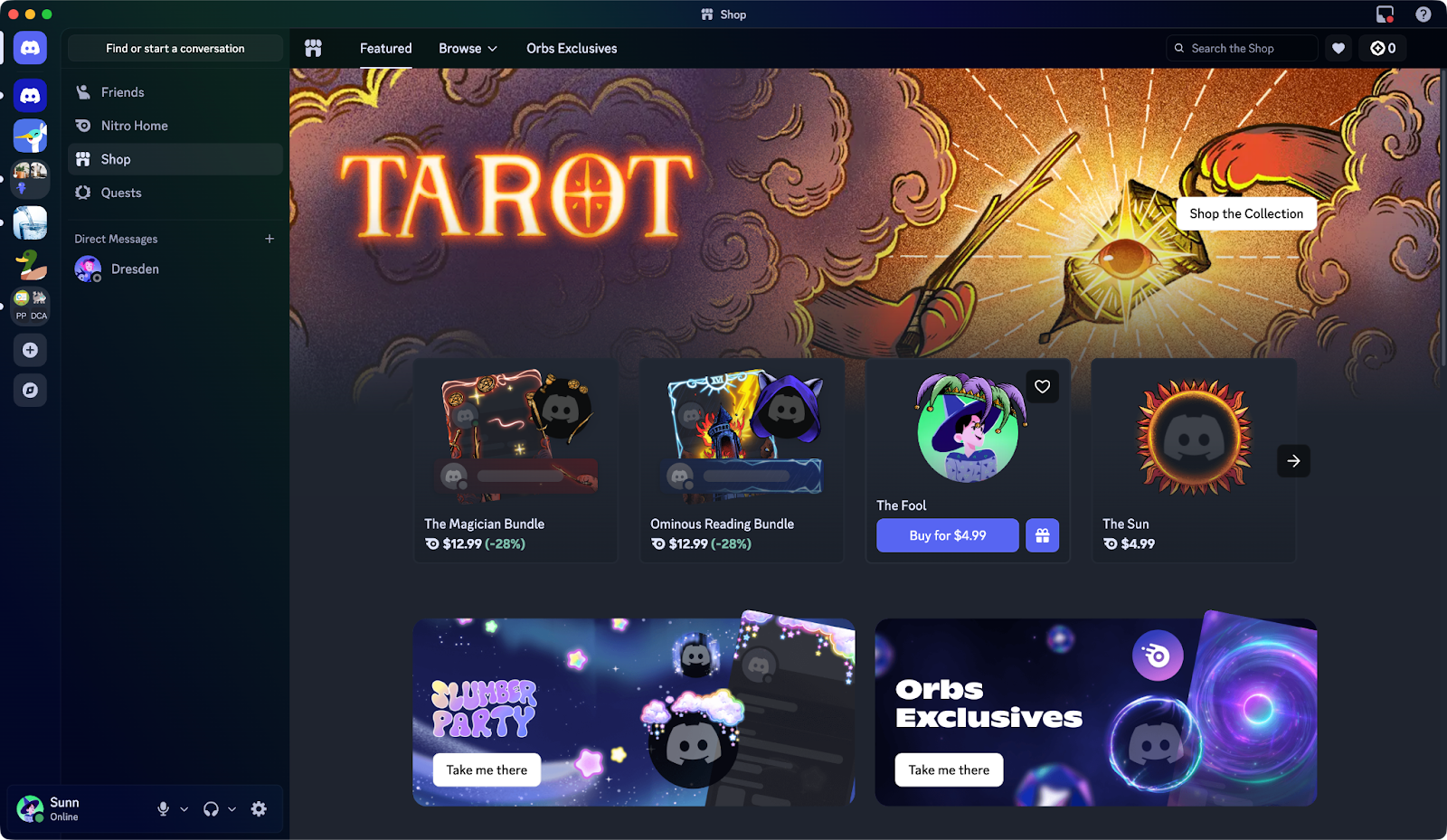
The Shop offers additional ways to customize how your profile looks on Discord. Some of the items available even extend beyond your profile, including on your avatar in chat or behind your display name when you’re listed in servers and Group DMs!
Check out a few ways to enhance your profile’s aesthetic:
Decorate Your Discord Avatar
Avatar Decorations put a frame around your digital noggin! They add a bit of animated flair to your icon wherever it’s seen, including on your profile and in text conversations.
Make Your Discord Profile Truly Shine
Profile Effects are big ol’ animations that cover your ENTIRE profile! They show up when someone views your profile directly on desktop or mobile. Let people bask in the glory of your presence.
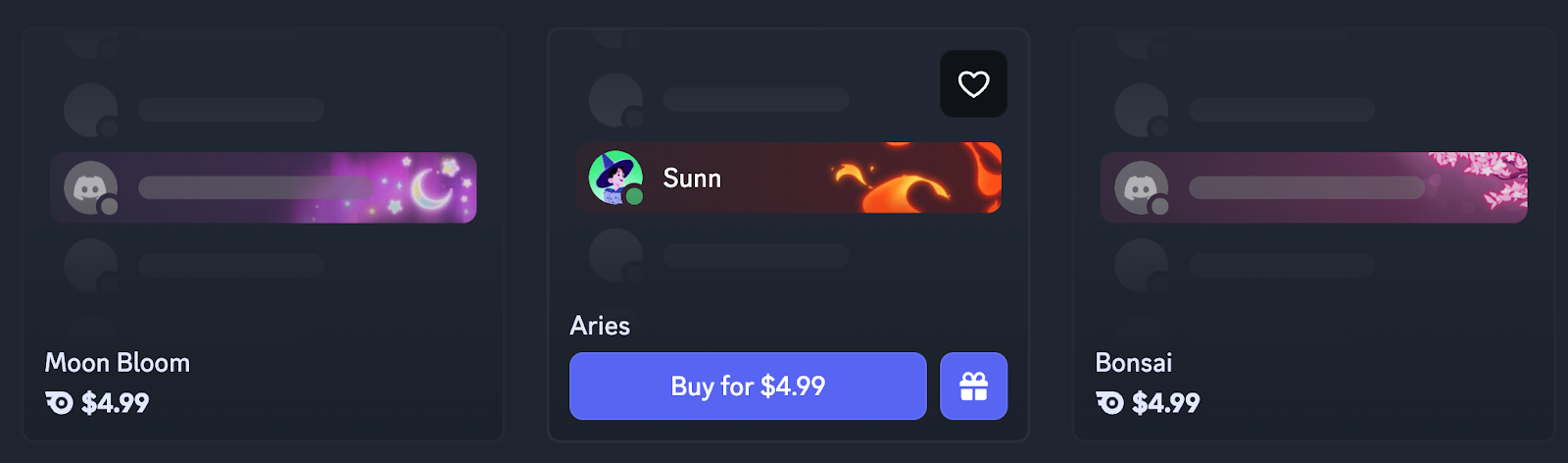
Add Gorgeous Art Behind Your Display Name
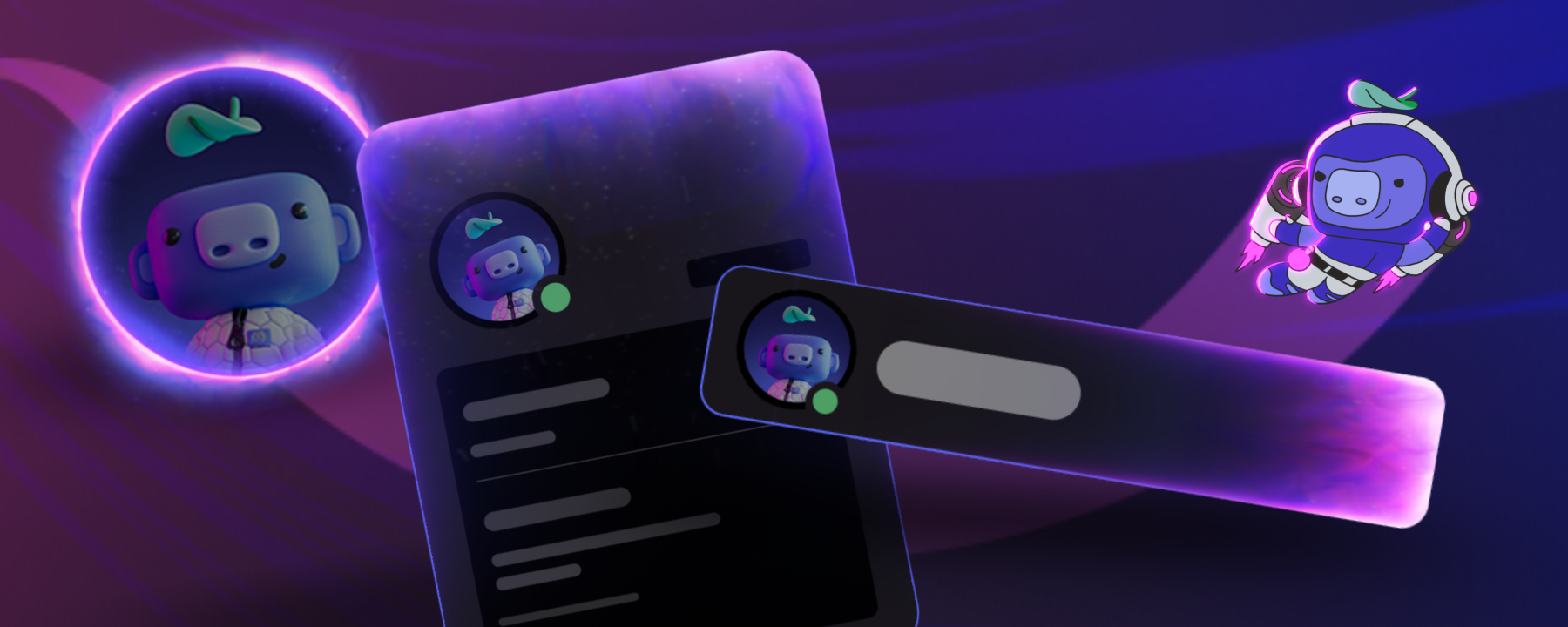
Nameplates are the newest offering from the Shop. They show up behind your display name in server member lists and when someone has your DM open on Discord. Check out our blog about how they work.
Exclusive Profile Perks for Nitro Members
If you’re a Nitro member, do even more profile customization to tie things together. You can even have… more than one profile. How is that even possible, you may ask?? Let’s run through the best profile-specific Nitro perks:
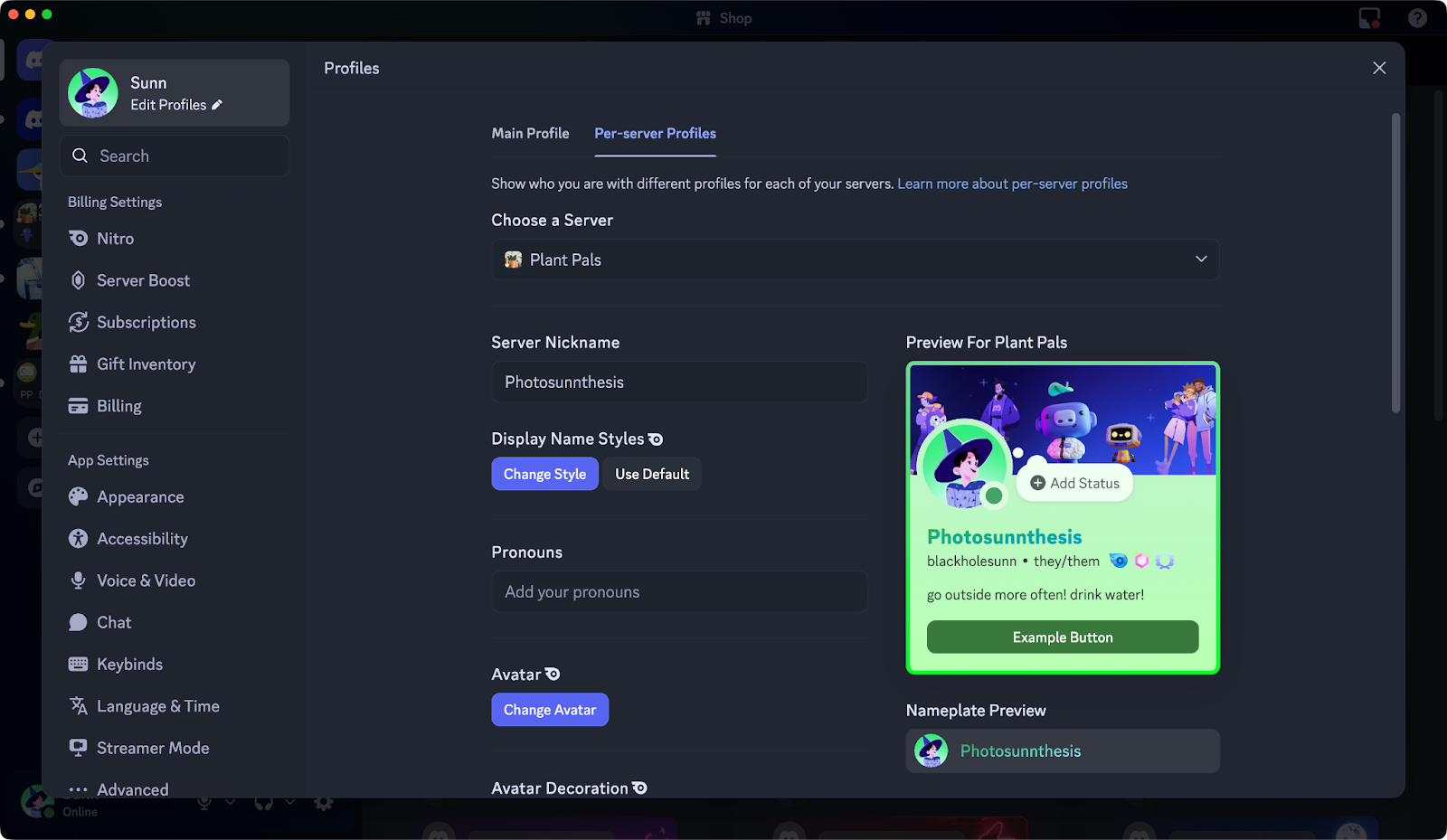
With Nitro, Set a Unique Profile on Each Server You’re In
Per-server profiles let you set a unique avatar, bio, and more for each community. If you’ve amassed a collection of Profile Effects and Avatar Decorations, you can even use those on a per-server basis!
You don’t have to change everything for a Per-server profile either!For example, if you just want to use a unique avatar in a particular server, you only need to upload it to that per-server profile. The rest of your per-server profile will mirror your main profile.
With Nitro, Set an Animated Avatar and a Profile Banner
Make some moves by making your PROFILE move! Nitro members can use an animated avatar to represent themselves. They can also set a profile banner that spans across the top of their profiles.
With Nitro, Add a Splash of Vibrant Colors
Nitro members have an option called “Profile Theme” that lets them set a two-tone gradient that spreads across their entire profile! And they can add a unique color gradient for each server they’re in, thanks to per-server profiles.
With Nitro, Use Custom Emoji in Your About Me and Status Message
One of Nitro’s most popular perks is using custom emojis in any conversation across Discord. But did you know you can use custom emojis in your status message if you have Nitro?! Show off the emoji you made yourself to everyone, or that one emoji of a friend’s face that you keep spamming in chat (out of sheer love, of course).
Save that brain knowledge for when a good per-server bio jumps out at you! Or your main bio? Or your ENTIRE PROFILE??? It’s totally up to you.
With Nitro, Be Your Inner 𝔁𝓧6_𝓦𝓾𝓶𝓹𝓾𝓼-𝓖4𝓶𝓮𝓻_7𝓧𝔁
Sometimes, being “Wumpus” just isn’t enough. Sometimes you gotta be 𝓦𝓾𝓶𝓹𝓾𝓼, or even…
/inhale
𝕷𝖔𝖗𝖉 𝖂𝖚𝖒𝖕𝖚𝖘, 𝕰𝖒𝖇𝖊𝖗 𝖔𝖋 𝖙𝖍𝖊 𝕾𝖊𝖗𝖛𝖊𝖗 𝕾𝖆𝖓𝖈𝖙𝖚𝖒
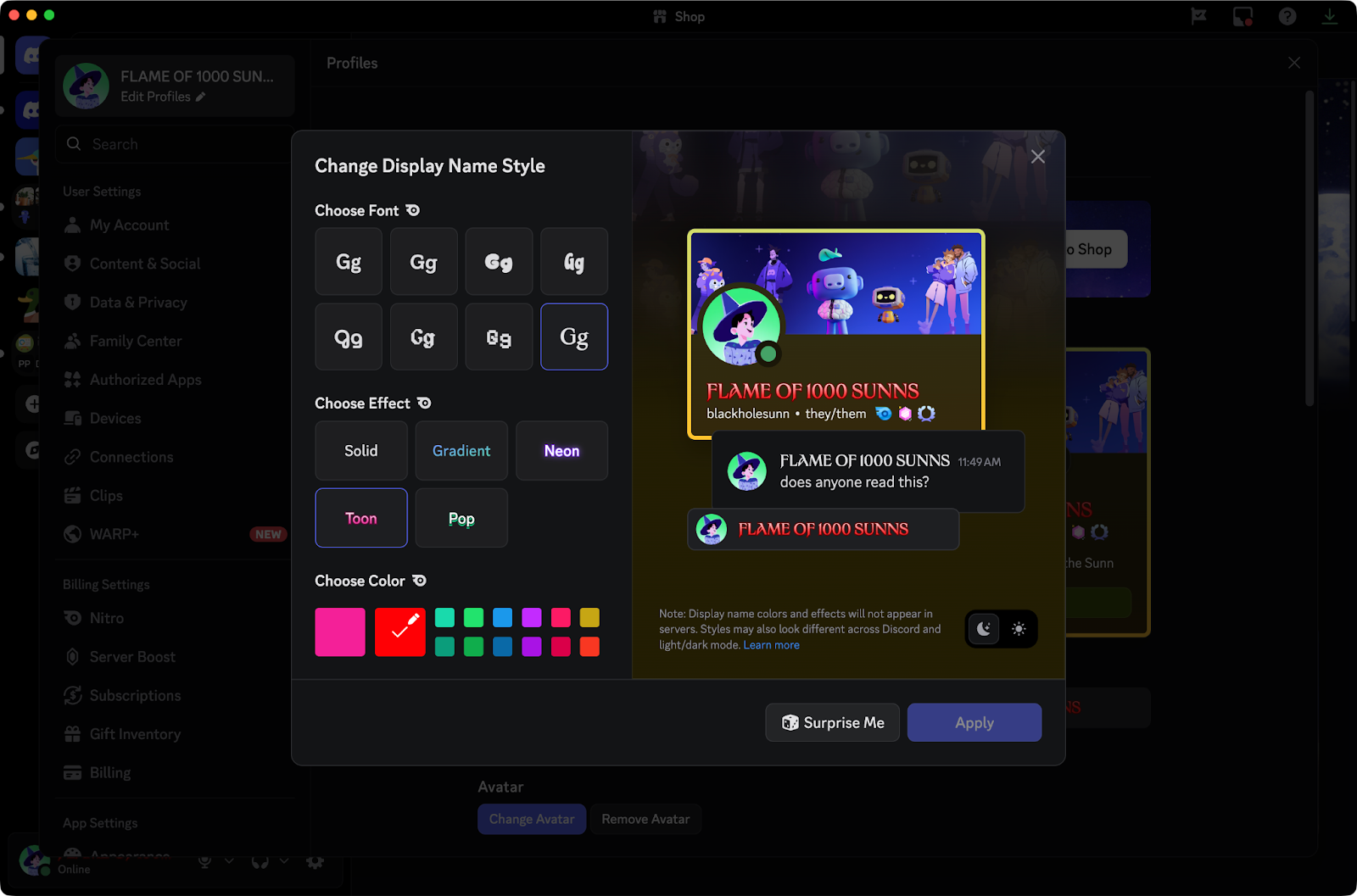
When it’s time to display even more emotion to your name, and you happen to be a Nitro member, you can change up how your name looks by heading into Settings and selecting “Display Name Styles.”
After you’ve carefully decided on the right font, color, and animation effect, or you just kept smashing “Surprise Me” until you got something that looks sick, you’ll see your chosen font in every place your name shows up! Colors and effects will appear on your profile and in DMs.
You’ve got the perfect profile picture set up. You’ve written a meaningful About Me bio. You might’ve even added some extra items from the Shop or added some extra flair with Nitro. Now get out there and be the real you!
If you’re still unsure about how particular features of your Discord profile work, you can always ask our support team. If they had a Discord Profile, it’d probably be full of nerdy stats and numbers since they’re so helpful all the time.
Tags
No items found.
Locke
Locke's years of experience throughout the universe make him the most knowledgeable person to teach you about All Things Discord. Has a soft spot for Nutella and jack cheese sandwiches.









.png)
.png)




Nameplates_BlogBanner_AB_FINAL_V1.png)


_Blog_Banner_Static_Final_1800x720.png)


_MKT_01_Blog%20Banner_Full.jpg)


.png)


.png)


